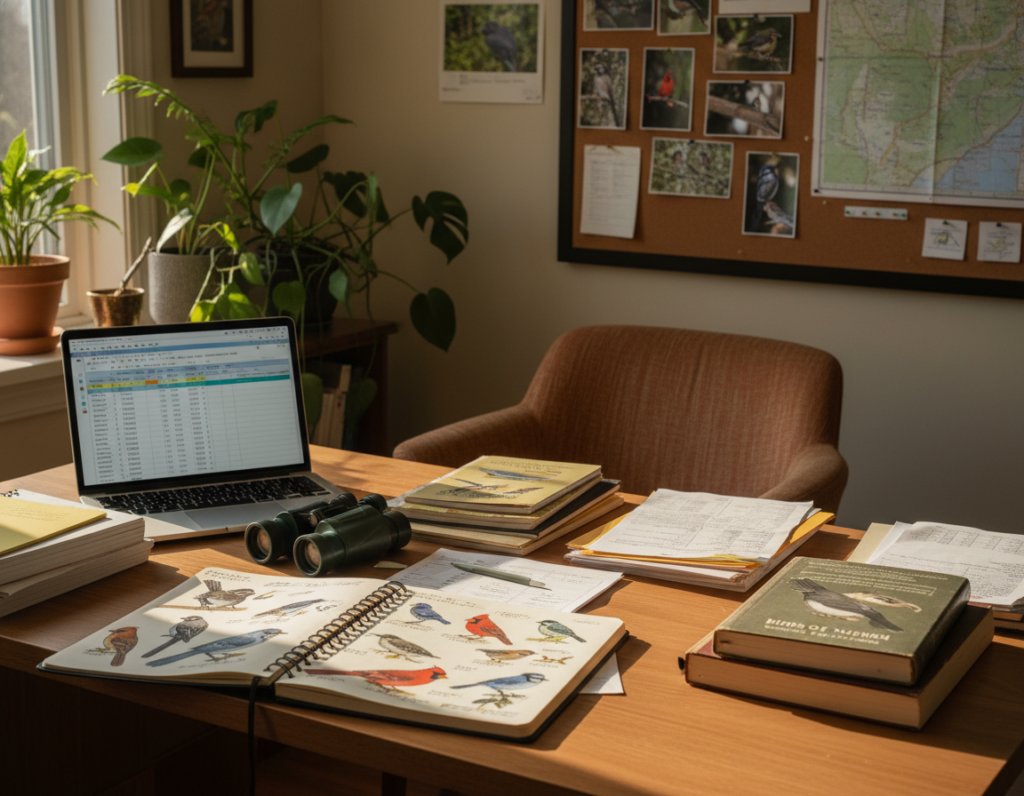
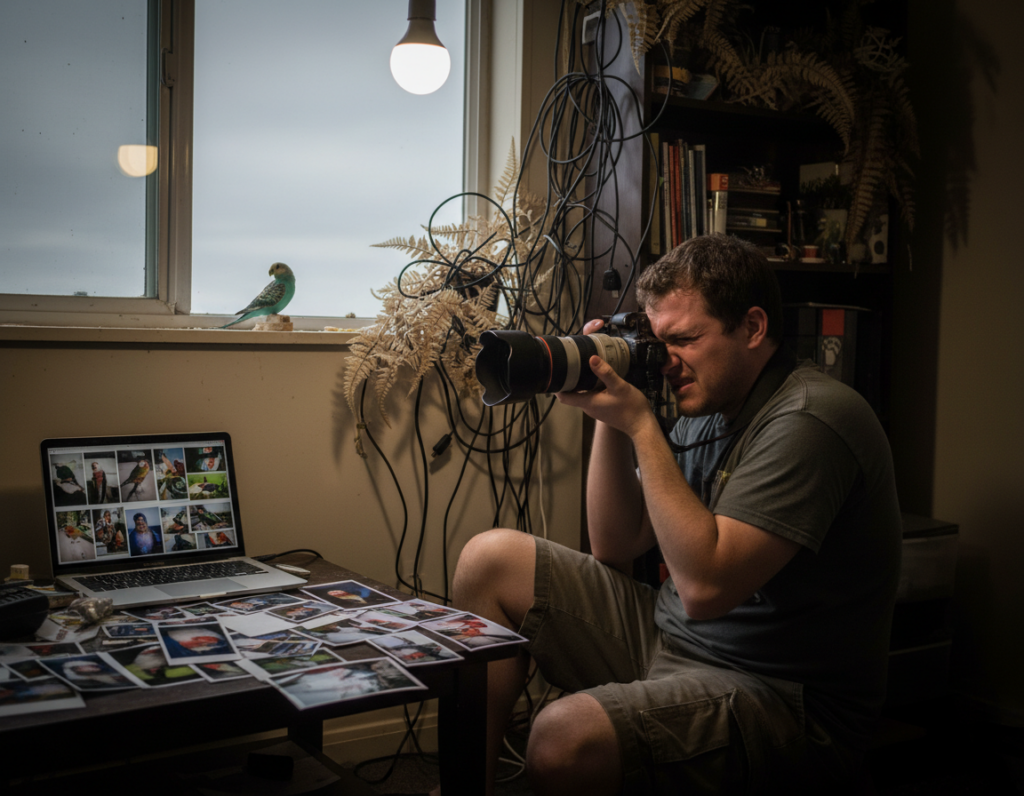
He reads his images after a day in the field to learn what happened locally. Reviewing files weekly and monthly makes it easier to spot trends over time.
Using a dedicated program like Adobe Lightroom or similar software helps manage hundreds of files from a typical day. Saving primary archives on an external hard drive rather than a home computer reduces risk and speeds up workflow.
Consistent editing and a simple plan prevent a year-end backlog. Transferring every file from the camera’s memory card to primary storage, then finalizing seasonal folders into an annual folder, keeps the library tidy.
The most important point is to adopt a method that matches personal interests and photography style. That way, the photographer learns local activity patterns of birds across the year without feeling overwhelmed.
Key takeaways: 1) Review and edit regularly. 2) Use dedicated software and an external drive. 3) Finalize seasonal work into an annual folder.
Establishing a Reliable Storage System
A compact external hard drive is the first practical step to manage a growing photography library. A cellphone-sized drive with a couple of terabytes of memory handles thousands of photos without slowing a workflow. This keeps the photographer’s main computer uncluttered and speeds edits.
External Hard Drive Management
After each day in the field, the normal process is to download files from the camera to the primary hard drive. Then re-insert the memory card into the camera and format it so cards are ready for the next outing. If a computer lacks a card reader, an external reader connects via USB.
The Importance of Backups
Keep a second backup drive with a full copy of the library in a separate location. Updating that copy every month protects against fire, flood, or theft. Repeating the download routine every couple of weeks helps the system stay current and makes it easy to find or copy a file when needed.
How to Organize Bird Photos by Season
Grouping captures into four clear time blocks makes a large library manageable. Paul Konrad places January–March in “Winter,” April–June in “Spring,” July–September in “Summer,” and October–December in “Fall.”
The photographer then files those four folders into an annual folder such as “2020 Photos” at year end. Within each seasonal folder, trip-specific location folders keep images from a single outing together. This step is like adding books to shelves one month at a time.
Create a simple naming rule that fits interests. He can make family-specific folders for favorite species or add location tags in filenames. Keeping a steady review schedule each quarter makes it faster to find shots when needed.
This method works for beginners and seasoned shooters alike. Using consistent seasonal folders helps reveal local activity patterns across the year and saves time during future searches.
Developing a Consistent Naming Convention
Consistent file titles turn a week-long trip into an instantly searchable archive. He uses a short, repeatable method so each image tells its story at a glance.
Structuring Individual File Titles
Start with the group—Raptors, Shorebirds, Wading Birds, Songbirds, Ducks. Next add species, count if needed, a brief pose or behavior, state abbreviation, and date.
- Example: “Songbirds – Yellow Warbler female side ND 5-20”.
- Example with count: “Ducks – Ruddy Duck brood 11 swimming mirrored ND 7-20”.
- Trip summary: “September 1-18 2020 – Hummingbirds, Merlin, Cedar Waxwings, Peregrine, Hawks”.
The process uses numeric and alphabetical sorting to advantage. Files named with a date or count group together automatically.
Tip: During a week-long trip he places each day’s downloads into a subfolder inside the seasonal folder to keep files easy to scan.
“A clear naming rule makes it simple to pull a Rough-legged Hawk image from an archive.”
For further reading on practical file management, see the digital asset management guide.
Streamlining Your Workflow with Lightroom
Starting with a clean import in Lightroom sets the pace for every step of the editing process. A single catalog can manage over 20,000 images, which keeps large libraries simple to view and sort.
Importing and Initial Sorting
After a long trip he imports all files into one catalog. If there are about 200 photos from a day, initial culls in Grid view save time.
Tip: Add basic keywords and a location during import so later searches are faster.
Using Collections for Species
Create collections for each species to group the best images. Collections make it easy to compare shots and delete the weak ones.
- Create a collection named “Kingfisher, Belted” and add selects.
- Use the Synch button to apply metadata to multiple files at once.
- Filter the library by location, date, or keyword to narrow results.
Renaming Files in Bulk
Bulk renaming keeps a clear file name pattern across the year. He often inserts the Title and original filename to make names like Kingfisher, Belted_MG_3245.CR2.
Workflow note: Select groups in Grid view, add a species keyword, then rename. This small routine speeds future searches and keeps the catalog tidy.
“A fast, consistent import and simple collections make editing less of a chore.”
Enhancing Searchability Through Metadata
Adding searchable metadata makes every image easier to find later. Tagging photos with family names, plumage colors, or habitat creates precise search hooks in Lightroom.
Geotags and coordinates speed location-based queries. He can drop selects onto the Map page to add coordinates, or apply bulk geotagging to many files at once.
Search in Grid view, click the Library Filter’s Text option, and type a species or note to pull relevant images. The Metadata filter further narrows results by location, IPTC fields, or camera info.
Save common entries—IPTC Status/Title and custom keyword sets—to all selected files for consistency. Adding keywords takes time, but it pays off when he needs a single photo quickly.
“Well-applied metadata turns a large archive into an instant reference.”
Use colored flags and extra fields for culls and editing status. For guidance on documenting sightings and linking records, consult this practical resource on regional reporting at documenting your sightings.
Protecting Your Digital Library
Regular cloud backups paired with local drives create a safety net for every photo archive.
Use redundant storage. Keep a primary copy on a fast hard drive and a second local drive offsite. Add an online service such as CrashPlan or Backblaze for continuous, low-cost protection.
Back up the Lightroom folder. That folder holds the catalog, ratings, tags, and edits. Losing it erases valuable information about each file and edit history.
- Choose which folders on the computer to protect and let the program run in the background.
- For extra safety, opt for Adobe’s 1TB cloud if using the latest Lightroom.
- Keep one backup drive in a separate place, such as an office or safety deposit box.
Check status often. Use the software view or settings to confirm recent sessions and camera imports are backed up. Redundancy is the single best way to save time and recover images after failure.
Conclusion
A clear workflow saves time and helps him focus on shooting rather than hunting for files. This simple rule, keeps the library useful and makes it easier to review local activity over the year.
Use a steady file name and a consistent import routine in Lightroom to speed edits and reduce backlog. Keep each step small so editing does not pile up.
Keep redundant backups on a second drive and a cloud service. That protects images if a computer fails and saves lots of future time.
Whether tracking a favorite species or casually enjoying bird photography, a reliable system protects the work of each trip and each camera session.
At the end, every photo is part of a personal record. Save the best, label with a clear name, and the archive will reward future searches and study.